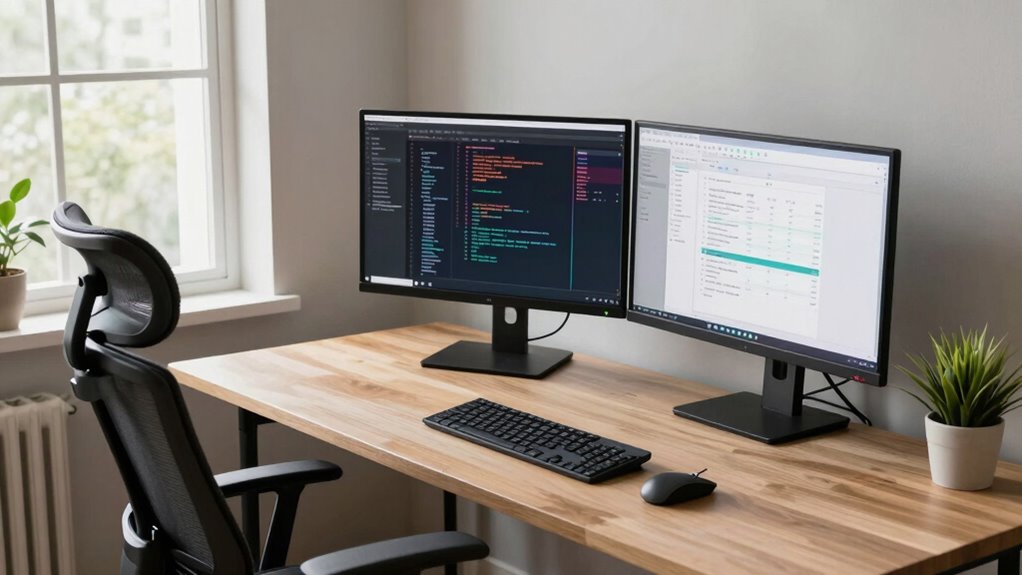

To choose a monitor setup that matches your work style, first identify your primary tasks like photo editing, design, or general use. Prioritize color accuracy and consider larger screens or dual monitors for detailed work. Set up your workspace ergonomically, keeping monitors at eye level and using adjustable stands. Think about size, resolution, and additional features like USB hubs. Keeping your setup organized and calibrated will boost productivity and comfort—continue exploring for more tips to optimize your workspace.

Get furniture and decor delivered free — and shop member deals
- Fast, free delivery on millions of items
- Access to Prime Big Deal Days deals on October 6–7
- Prime Video, Amazon Music and more included
Key Takeaways
- Assess your primary tasks to determine the necessary screen size, resolution, and number of monitors.
- Prioritize color accuracy and calibration for visual projects and detailed editing work.
- Incorporate ergonomic adjustments to ensure comfort and reduce strain during long work sessions.
- Opt for a setup that enhances workflow, such as dual monitors or larger screens, based on your multitasking needs.
- Include features like cable management and USB hubs to create an organized, efficient workspace.

Have you ever wondered how to choose the perfect monitor setup for your needs? It all starts with understanding your work habits and the tasks you perform daily. If you spend hours editing photos or working on design projects, you’ll want a monitor with accurate color calibration. This means selecting a display that can reproduce colors precisely, making sure your images look vibrant and true to life. Look for monitors that come factory-calibrated or offer easy calibration options so you can fine-tune the color settings yourself. Proper color calibration isn’t just about aesthetics; it helps prevent eye strain and reduces fatigue by providing consistent visuals.
Next, consider ergonomic accessories to make your workspace more comfortable and efficient. Adjustable stands, ergonomic keyboards, and supportive mice can greatly improve your posture and reduce physical strain. If you work long hours, investing in a monitor with height, tilt, and swivel adjustments guarantees you can position it at eye level, keeping your neck and shoulders relaxed. Pairing your monitor with ergonomic accessories not only boosts comfort but also enhances productivity, because you won’t be distracted by discomfort or pain. Additionally, choosing ergonomic accessories that suit your specific needs can further optimize your workspace and support long-term health. Incorporating ergonomic principles into your setup can lead to a healthier working environment overall.
Ergonomic stands and accessories improve comfort, posture, and productivity by reducing strain during long work hours.
Size and resolution are also vital in shaping your setup. For detailed work like editing or programming, a larger screen with higher resolution—such as 4K or dual-monitor configurations—can give you more workspace and reduce the need to constantly switch between tabs. On the other hand, if your tasks are more straightforward, a mid-sized monitor with standard resolution may suffice, saving space and budget. Keep in mind that multiple screens can mimic a larger workspace, but only if they’re positioned correctly and calibrated for color consistency, especially if you’re working with visual content. Color calibration is essential for ensuring your visuals are accurate across multiple displays. Proper calibration can also help you maintain color accuracy between screens, which is crucial for visual projects. Remember, consistent calibration across your setup can significantly improve your workflow and the quality of your output.
Finally, think about your workflow and the physical space you have available. A cluttered desk can hinder your efficiency, so choose monitors that fit comfortably without crowding your area. Cable management options help keep your workspace tidy, and choosing monitors with built-in features like USB hubs can consolidate your peripherals. Remember, the goal is to create a setup that feels natural and supports your work style. By paying attention to details like color calibration for visual precision and ergonomic accessories for comfort, you’ll craft a monitor setup that makes your work easier, healthier, and more enjoyable.
As an affiliate, we earn on qualifying purchases.
Frequently Asked Questions
How Do I Determine the Right Monitor Size for My Workspace?
You determine the right monitor size by considering your desk placement and workspace space. If you have a large desk, opt for a bigger screen, like 27 inches or more, to avoid strain. Make certain the monitor fits comfortably without clutter. Also, choose a size that allows you to maintain proper distance for clear visuals. Don’t forget to calibrate colors for accuracy, especially if you’re working on detailed projects or editing photos.
What Are the Best Monitor Features for Multitasking?
For multitasking, look for a monitor with high color accuracy to guarantee your visuals stay sharp and true to life. Multiple connectivity options, like HDMI, DisplayPort, and USB-C, make it easy to connect various devices without hassle. A wide screen or ultrawide monitor boosts productivity by giving you more space for multiple windows, while adjustable stands improve comfort during long work sessions.
How Important Is Refresh Rate for Everyday Work?
A higher refresh rate, like 144Hz, isn’t essential for everyday work, but it can make your experience smoother, especially when scrolling or multitasking. An impressive statistic shows that 60Hz is standard for most tasks, but moving to 120Hz or higher improves response time. While refresh rate impacts fluidity, don’t forget color accuracy for visuals and response time for quick interactions—these are key for a comfortable, efficient workspace.
Should I Prioritize Resolution Over Screen Size?
You should prioritize resolution over screen size if your work demands detailed visuals, like photo editing or design, where color accuracy is essential. Higher resolution offers sharper images, making tasks easier and more precise. Keep in mind, larger screens may consume more power and could impact color consistency. Balance your needs — if clarity and detail matter most, go for higher resolution; if workspace is limited, a smaller, high-res monitor works well.
What’s the Ideal Ergonomic Setup for Long Hours?
For long hours, you want an ergonomic setup that minimizes eye strain and guarantees color accuracy. Keep your monitor at eye level, about an arm’s length away, with the top of the screen at or slightly below eye height. Use adjustable brightness and contrast to reduce eye fatigue, and choose a monitor with good color accuracy. Take regular breaks, and consider blue light filters to protect your eyes during extended use.
Conclusion
Choosing the right monitor setup is like finding the perfect pair of shoes—you want comfort, support, and style that match your stride. By understanding your work habits and space, you’ll create a setup that feels natural and boosts your productivity. Remember, the right monitor arrangement isn’t just about looks; it’s about making your workday smoother, like a well-oiled machine gliding effortlessly through its tasks. So, tailor your setup and step into a more comfortable, efficient workspace.
Fall Picks
fall essentials
As an affiliate, we earn on qualifying purchases.